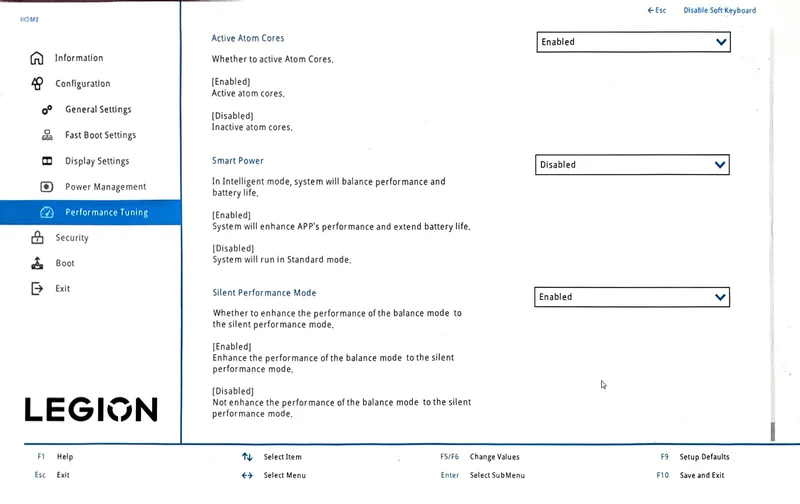
How to enable Silent Performance Mode
- Restart the laptop and press F2 during startup to open the BIOS.
- Go to Configuration › Performance Tuning.
- Set Silent Performance Mode to Enabled, then press F10 to save and exit.
- In Windows, choose Balanced in Legion Space or with Fn+Q.
The BIOS describes the option as enhancing "the performance of the balance mode to the silent performance mode". It does not touch Quiet or Performance mode. It also does not carry over to Custom mode: with the option on, Custom › Restore Default › Balance still loaded the factory 80W GPU limit. I have only tested the Intel 16IAX10H. Every other option in the app is covered in Legion Space settings explained.
Silent Performance results: vs Balanced and Performance
Black Myth: Wukong, average FPS higher is better
CPU temperature in the benchmark, average shorter is cooler
Wukong benchmark tool, Cinematic, 2560×1600, DLSS 67%, Full Ray Tracing Very High, frame generation on. Temperature bars start at 0 °C. Full numbers are in the table below.
| Balanced | Silent Performance | Performance | |
|---|---|---|---|
| Average / 5% low FPS | 62 / 54 | 80 / 69 | 84 / 73 |
| Share of Performance-mode FPS | 74% | 95% | 100% |
| GPU power | 94W | 162W | 170W |
| GPU clock | ~1,780 MHz | ~2,260 MHz | ~2,350 MHz |
| GPU temperature (average / max) | 70 / 72 °C | 83 / 86 °C | 84 / 87 °C |
| CPU package power | 39W | 35W | 73W |
| CPU temperature (average / max) | 78 / 91 °C | 86 / 94 °C | 100 / 105 °C |
| Noise at 30 cm | 42.6–43.0 dB | 45.3 dB | 58.2 dB* |
Balanced is the average of two runs. * The Performance noise reading is much higher than the 47.8 dB I measured in the same mode for my review, so the phone may have been closer to an exhaust vent. Treat it as unconfirmed; the Balanced and Silent Performance readings were taken the same way as each other.
Silent Performance is the best value of the three. It keeps 95% of Performance mode's frame rate and lifts the 5% lows from 54 to 69 FPS over Balanced, which you notice in play. The GPU gets about 162W instead of 94W.
| Balanced | Silent Performance | Performance | |
|---|---|---|---|
| Average / minimum FPS | 58.2 / 51.0 | 76.0 / 67.7 | 80.4 / 72.0 |
| Share of Performance-mode FPS | 72% | 95% | 100% |
| GPU power | 85W | 146W | 161W |
| CPU package power | 50W | 54W | 86W |
| CPU temperature (average / max) | 79 / 89 °C | 83 / 99 °C | 94 / 104 °C |
| CPU thermal throttling | none | 3% of the run | 55% of the run |
Cyberpunk asks more of the CPU than Wukong, and the pattern holds: Silent Performance keeps 95% of Performance mode's frame rate while the CPU draws 54W instead of 86W and runs 11 °C cooler on average.
The CPU is the trade-off that makes it work. HWiNFO showed a new 60W dynamic CPU power limit in this mode, and the CPU drew only 35W during the benchmark. GPU-heavy games do not need more, so frame rate did not suffer. Heavy CPU work such as long compiles or renders may run slower than in standard Balanced; I have not measured that yet.
One caution for long sessions: the GPU reached 86 °C by the end of the two-minute benchmark, close to its 87 °C target. In my review, Performance mode lost about 3% FPS after six minutes for the same reason, so expect a small drop in long sessions here too.
What standard Balanced mode actually does
Legion Space hides Balanced mode's limits, but its Custom page can load them (Custom › Restore Default › Balance). On my unit they are:
| GPU cTGP + CPU-to-GPU Dynamic Boost | 80W + 15W |
|---|---|
| CPU short-term / long-term power limit | 125W / 90W |
| CPU long-term limit (cross loading) | 70W |
| PL1 Tau | 56 (seconds; Legion Space labels it W) |
| CPU / GPU temperature limit | 103 °C / 87 °C |
The logs match: in Balanced the RTX 5080 sat at about 94W, the 80W cTGP plus the 15W boost, and was limited by power, not temperature, at around 70 °C. That is why Balanced loses a quarter of the frame rate. The cooler has room to spare, and Silent Performance uses it.
Raising the GPU slider above 80W in Custom mode is not a substitute for Silent Performance. On this laptop any cTGP above 80W switches Custom to a noticeably louder fan curve. Silent Performance reaches 162W with a much quieter result.
Custom mode: the "Cool CPU" profile
Silent Performance gives the GPU more power and lets the CPU run hot in CPU-heavy games. If you want the opposite, a cool CPU at Balanced-level frame rates, Legion Space's Custom mode can do it. The profile below held the Core Ultra 9 275HX at 75 °C in Cyberpunk 2077.
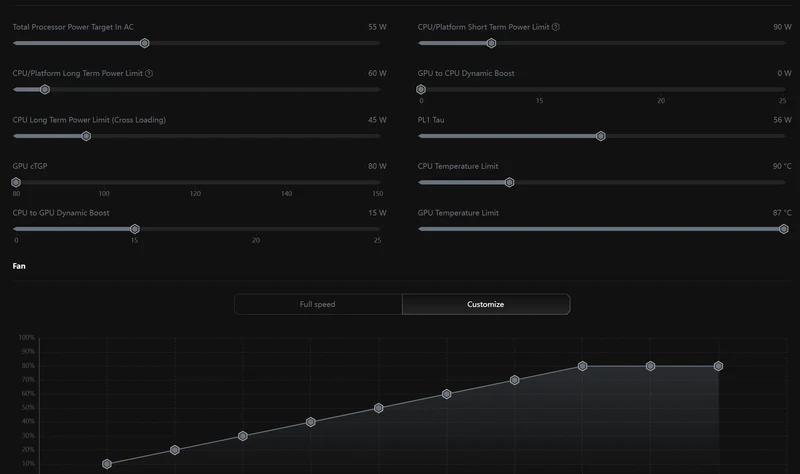
How to set it up
- Open Legion Space, select Custom on the home screen and open its settings.
- Click Restore Default and choose Balance, so every slider starts from the factory Balanced values.
- Change the five values marked in the table below and leave everything else, including the fan curve, as it is.
- Keep Custom selected on the home screen. If you want Fn+Q to cycle through it, tick "Press Fn+Q to toggle to Custom Mode".
| Setting | Balanced default | Cool CPU |
|---|---|---|
| GPU to CPU Dynamic BoostStops the CPU borrowing power from the GPU's budget. Without this, the CPU limits below do not hold. | 15W | 0W |
| CPU Long Term Power Limit (Cross Loading)Sustained CPU power while the GPU is also busy. This is the CPU limit that matters in games. | 70W | 45W |
| CPU/Platform Long Term Power LimitSustained CPU power when only the CPU is loaded, such as compiles or renders. | 90W | 60W |
| CPU/Platform Short Term Power LimitShort bursts during loading, app launches and the start of heavy work. | 125W | 90W |
| CPU Temperature LimitThe CPU lowers its clocks above this temperature. | 103 °C | 90 °C |
| Total Processor Power Target In ACThe CPU power target Lenovo's tuning aims for under mixed load. | 55W | 55W |
| PL1 TauSeconds the CPU may stay at the short-term limit (Legion Space labels it W). | 56 | 56 |
| GPU cTGPGPU base power. Above 80W, Custom switches to a louder fan curve. | 80W | 80W |
| CPU to GPU Dynamic BoostExtra GPU power when the CPU is under its budget, so the GPU reaches about 95W. | 15W | 15W |
| GPU Temperature LimitThe GPU lowers its power above this temperature. | 87 °C | 87 °C |
| FanFan speed against temperature. | Customize, default curve | unchanged |
Results
| Balanced | Custom "Cool CPU" | Silent Performance | |
|---|---|---|---|
| Average / minimum FPS | 58.2 / 51.0 | 58.8 / 52.3 | 76.0 / 67.7 |
| GPU power | 85W | 90W | 146W |
| CPU package power | 50W | 45W, at the limit | 54W |
| CPU temperature (average / max) | 79 / 89 °C | 75 / 80 °C | 83 / 99 °C |
| Highest CPU reading in the whole log | 100 °C (while loading) | 81 °C | 103 °C (after the run) |
All runs on October 29 with the same settings. For reference, Performance mode scored 80.4 / 72.0 FPS with the CPU at 94 °C on average.
- No frame-rate cost against Balanced, and slightly better lows. The CPU and GPU share one power budget: in Balanced the CPU took 50W and the GPU got 85W; capping the CPU at 45W left the GPU 90W. In Wukong the profile ran at the same 62 / 54 FPS as Balanced; that game only asked about 39W of the CPU, so the 45W limit never kicked in.
- The coolest CPU of any setting I tested. 4 °C lower on average and 9 °C lower at peak than Balanced in the benchmark, and 81 °C was the highest reading in the whole log against 100 °C for Balanced while the game loaded. With frame generation on (4X), it ran at 174 FPS with the CPU at 74 °C average and 86 °C maximum.
- It is Balanced-level performance. The GPU stays at about 90–95W, so you give up the 25–30% that Silent Performance or Performance mode add.
- It is slightly louder than Balanced. 45.7 dB against 43.0 dB in Wukong. Every Custom profile I ran came out 2–3 dB louder than Balanced at the same settings.
Why GPU to CPU Dynamic Boost has to be 0W
My first Custom attempt lowered only the CPU limits (cross loading 55W, long-term 60W, short-term 90W, 90 °C) and changed nothing: Wukong ran at 62 / 54 FPS, and with the game running in the background the CPU still drew 65–73W. GPU to CPU Dynamic Boost was still at its default 15W, and 55W plus 15W is 70W, right where the CPU settled. With the boost at 0W, the limit held.
Silent Performance vs Custom: which to pick
| Balanced | Silent Performance | Custom "Cool CPU" | |
|---|---|---|---|
| Wukong FPS (average / 5% low) | 62 / 54 | 80 / 69 | 62 / 54 |
| Cyberpunk 2077 FPS (average / min, FG off) | 58.2 / 51.0 | 76.0 / 67.7 | 58.8 / 52.3 |
| CPU temperature, GPU-heavy gameWukong; the CPU needs only ~39W, so the Custom limit does not engage | 78 / 91 °C | 86 / 94 °C | 78 / 91 °C |
| CPU temperature, CPU-heavy gameCyberpunk 2077 benchmark | 79 / 89 °C | 83 / 99 °C | 75 / 80 °C |
| Noise at 30 cm (Wukong) | 42.6–43.0 dB | 45.3 dB | 45.7 dB |
| How to enable | Fn+Q | BIOS option + Balanced | Legion Space Custom |
The Cool CPU profile only changes anything when a game asks the CPU for more than 45W. Wukong does not, so there it behaves exactly like Balanced. Cyberpunk 2077 does: the CPU took 50W in Balanced and 54W in Silent Performance, while the Custom profile held it at 45W and 75 °C on average.
Silent Performance ran Cyberpunk at 76 FPS, 95% of Performance mode, with the CPU at 83 °C on average and 99 °C at peak. Longer sessions can run hotter: in a 56-minute Witcher 3 session the CPU averaged 95 °C in a busy area, and the GPU dropped from 160W to about 130W as the shared cooler filled up.
- Pick Silent Performance if you want frame rate: about 95% of Performance mode for 2.5 dB more noise than Balanced. The CPU runs hot in CPU-heavy games, but within Intel's limits.
- Pick the Cool CPU profile if you want the processor in the 70s and low 80s and are happy with Balanced-level frame rates.
- Standard Balanced is still the quietest of the three.
Where the 100 °C+ CPU spikes come from, and whether they matter
Owners often see the Core Ultra 9 275HX briefly hit 100–105 °C even in Balanced. My logs show three causes:
- The first launch after a driver or settings change. Shader compilation briefly pushed the CPU to 186W and 105 °C. Later launches stayed far lower.
- Alt-tabbing out of a game. The game keeps rendering in the background at full GPU load while the CPU draws 50–75W. Single two-second readings reached 103–104 °C in Balanced, Custom and Silent Performance alike.
- Performance mode, where the CPU sits at 100–105 °C with thermal throttling most of the time.
The 275HX is specified to run up to 105 °C and throttles itself to stay there, so these readings are the chip doing what it was designed to do. Silicon wear depends mainly on voltage and current, and Silent Performance lowers CPU power in games, so I see no reason to expect a shorter CPU life from it. It runs warmer than standard Balanced only because the GPU heats the shared cooler. What does wear faster with more heat is the fans and the battery: clean the fans yearly and enable Conservation mode if the laptop lives on the charger.
Test setup
- Laptop: my own Legion Pro 7i Gen 10 (16IAX10H, EU unit), Core Ultra 9 275HX, RTX 5080 Laptop 175W, 32GB DDR5-6400. Full details are in the review.
- Software: Windows 11 Pro, NVIDIA driver 621.01, Legion Space 2.0.11.6, Black Myth: Wukong 1.0.3.14649.
- Game settings: Wukong benchmark tool, Cinematic preset, 2560×1600, DLSS 67%, Full Ray Tracing Very High, frame generation on. These are heavier than the settings in my review, so the FPS here is lower and the two pages should not be compared directly.
- Conditions: plugged in, dGPU-only mode (MUX), raised on a cooling stand with the stand's fans off, October 28–29, 2026. The "Cool CPU" runs on October 29 were made with virtualization switched off in the BIOS.
- Cyberpunk 2077: v2.5 built-in benchmark, Ray Tracing: Ultra preset, textures High, DLSS Super Resolution Auto (Transformer), Ray Reconstruction off, frame generation off, as in the review.
- Logging: HWiNFO64 at 2-second intervals. Averages cover the benchmark run only, not loading or menus.
- Noise: uncalibrated phone app at 30 cm in front of the laptop. Differences of 1–2 dB are within the measurement noise. The fans' speed is not exposed to HWiNFO on this model.
FAQ
FRAMELIMIT may earn a commission from qualifying purchases at no extra cost to you.